

AgriSense, Crop Trend Analysis, and some Climate historical queries run on Google Earth Engine (GEE). SINAG does not share a platform-wide GEE login. Each user (or office) uploads their own service-account JSON key. Until that key is linked, those tools stay locked.
Treat the JSON file like a password. Do not email it, commit it to git, or paste it into chat. Anyone with the file can use your Earth Engine quota.
What you will create
- A Google Cloud project with the Earth Engine API enabled
- A service account with Earth Engine access
- A downloaded JSON key for that service account
- Registration of the service-account email in the Earth Engine service-account list
Do not use an email that ends with gov.ph. Government emails do not have access to the Earth Engine API.
1. Google Cloud project and Earth Engine API
-
Search for Google Cloud Console
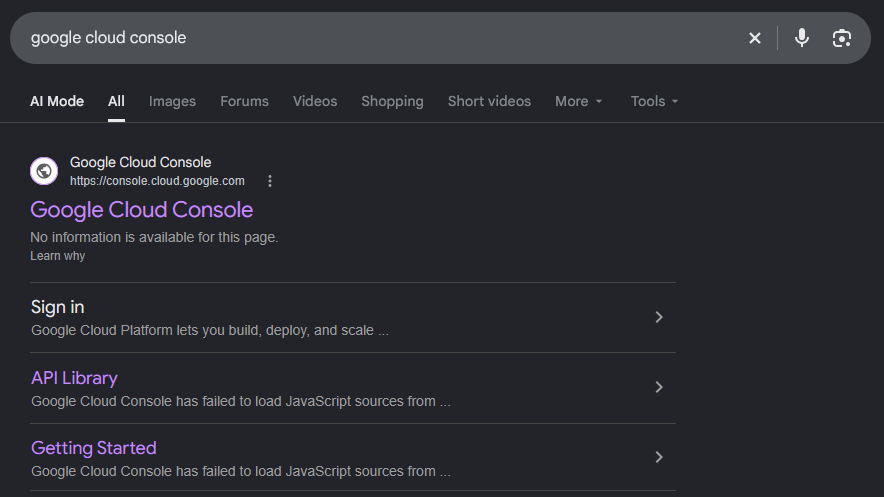
Search for Google Cloud Console in your browser and click Sign-in in the search results.
-
Create or select a project
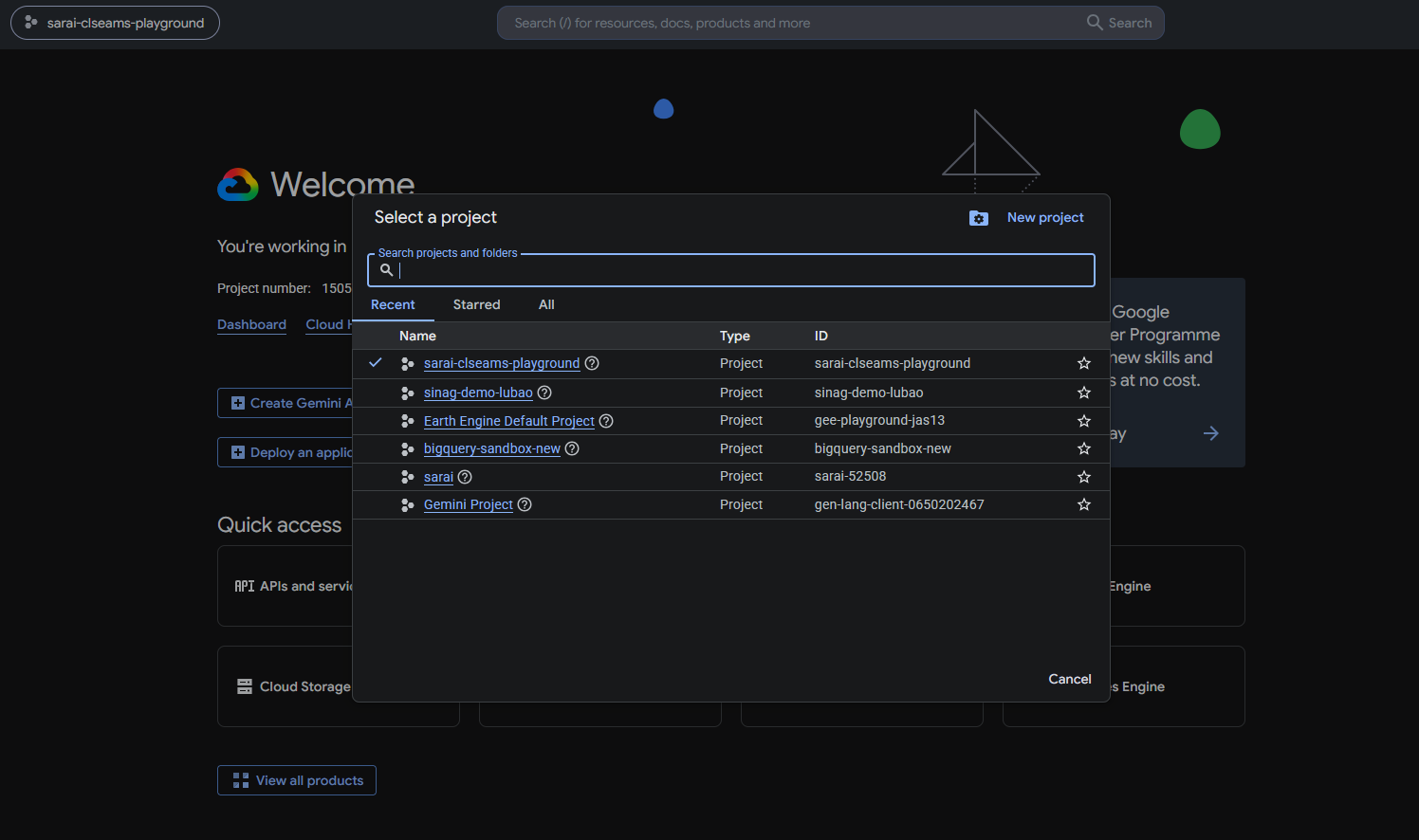
Locate the Project dropdown menu and select New Project or Select Project.
You can use an existing project if your institution already has one, or create a new project (for examplesinag-gee-office).
Note the Project ID; SINAG stores it from the JSON key after upload. -
Register the project to Earth Engine
Go the Search Bar and type Earth Engine and select Earth Engine from the results. After that, you should be able to see the Earth Engine dashboard. Navigate to the Overview tab and look for Register your cloud project section. Click the Register button.
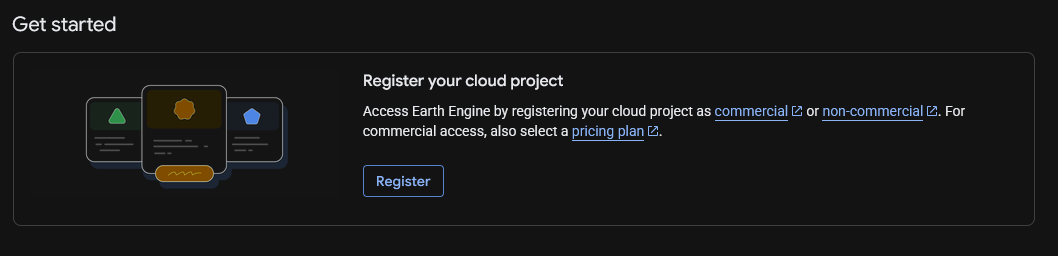
Under the See if you are eligible for non-commercial use section, Click the Get Started button.
-
Complete the eligibility form
Google asks a few questions to confirm non-commercial use. Choose Government as the organization type, then click Next. Answer the remaining prompts as follows:
- Is your organisation considered one of the following?
- None of the above
- Government name
- Republic of the Philippines
- Will you use Earth Engine for repeat analyses over time?
- No
- Will you use Earth Engine for research?
- Yes
- Will you use Earth Engine for academic purposes?
- Yes
- What is the geographic scope of the study?
- Regional (for example, Central Luzon)
- Have you published research using Earth Engine?
- No
Click Check Eligibility. Continue only after you see You are eligible for non-commercial use.
-
Register as a Community Member
In Choose your plan, select Community Member, then click Next.
On Describe your work, the options depend on your role. Choose the description that best matches what you do, then review your answers and click Register.
When Google asks you to turn on the Earth Engine API, click Enable.
infoIf that prompt does not appear, go to APIs & Services → Library, search for Earth Engine API, and click Enable.
Skip the next steps and proceed to the next section if you have already registered your project to Earth Engine.
2. Service account and JSON key
SINAG relies on service accounts to access the Earth Engine API. A service account is a Google account that is used to authenticate requests to the Earth Engine API. In this section, you will create a service account and a JSON key for that service account. This section requires a Google account that already has registered and Earth Engine access.
-
Open IAM & Admin → Service Accounts
In Cloud Console, open the left sidebar by clicking the Hamburger Menu (☰) button and hover over IAM & Admin then click Service Accounts.
-
Create the service account
Click + Create service account. In Service account name, enter a clear name (for example
sarai-gee-access).In Service account ID, click the circular Generate icon (the circle with an arrow) so Google fills a unique ID. Then click Create and continue.
-
Grant the Owner role
Under Grant this service account access to the project, open the Role menu. Select Currently used, then choose Owner.
priority_highAssign Owner before you continue. A service account without this role cannot run AgriSense and the other Earth Engine tools in SINAG.
Click Continue. Skip the next screen (Grant users access to this service account) and click Done.
-
Create a JSON key
Click the new service account email → Keys tab → Add key → Create new key → JSON → Create. The browser downloads a
.jsonfile. Keep it on a private drive, not a shared folder.
-
Open the GEE service-account signup page
Go to signup.earthengine.google.com/#!/service_accounts while signed in with a Google account that already has Earth Engine access (complete Earth Engine registration for that user first if you have never used the Code Editor).
-
Register the service-account email
Paste the
client_emailfrom the JSON (or from the Cloud Console service-account list) and submit. Wait until the page confirms the account is registered before uploading the key to SINAG.
3. Upload the key in SINAG
When the JSON is downloaded and the service account is registered with Earth Engine, link it in your SINAG account. That walkthrough is a separate guide: Set up Google Earth Engine in SINAG.
If something fails
- Key authenticates but Earth Engine calls fail — enable the Earth Engine API on that Cloud project.
- Permission errors in analysis — keep the Owner role on the service account and finish registration on the GEE signup page.
- Quota or “not registered” errors — the Google account that registered the service account must itself be an Earth Engine user.
- Upload or locked tools in SINAG — see Set up Google Earth Engine in SINAG.
Offices often share one Cloud project and one service account across staff. Each SINAG user still uploads the same JSON on their own account. Prefer a dedicated project so Earth Engine usage is easy to audit.